Rever Agent
Rever Agent provides an AI-powered conversational interface that allows users to interact with connected business systems, retrieve insights, and perform queries using natural language. It simplifies access to data across multiple systems and enables users to take actions directly from insights.
Accessing Rever Agent
- Navigate to Rever Agent from the left navigation panel.
- The conversational interface will be displayed.
User Workflow
- Click on + New Conversation
- Enter a query in the chat input field
- System processes the query using connected systems (MCPs)
- AI generates a response
- User can:
- Continue the conversation
- Create a task from the response
- Refer to previous conversations
Key Metrics
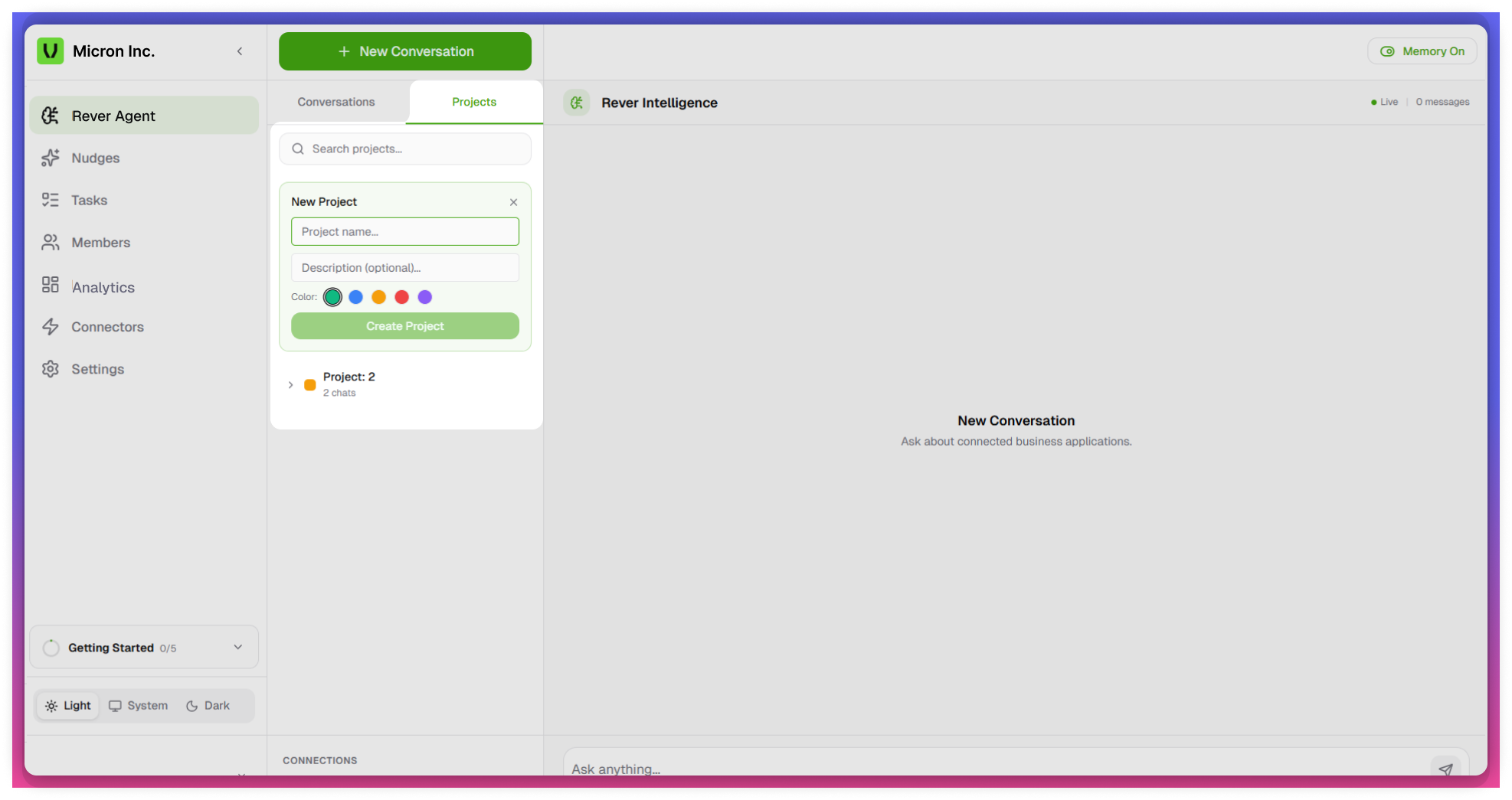
1. Project (Conversation Organization)
- The Project feature allows users to organize conversations into folders
- Helps group related chats under a single project
Key Capabilities
- Create a Project (acts like a folder)
- Add multiple conversations within a project
- Maintain all related discussions in one place
tip
Organize conversations by: Vendor analysis, Invoice queries, Financial audits, Specific business topics
2. New Conversation
- Click on + New Conversation to start a new query session
- Each conversation is treated as an independent session
- Helps organize queries by topic or chat bases
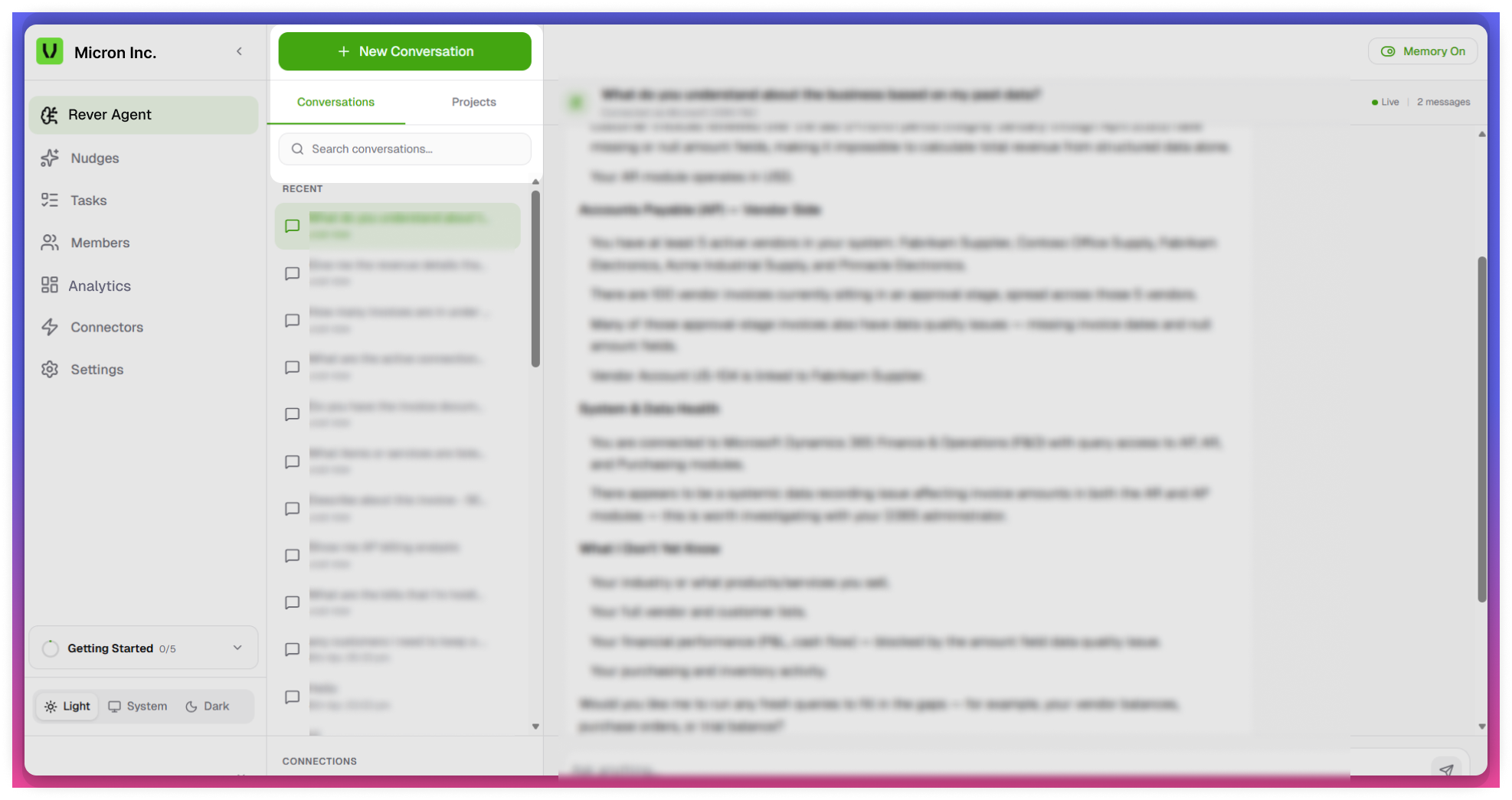
Conversations Panel
Displays a list of previous interactions.
- Shows:
- Conversation titles (based on queries)
- Timestamp (date and time)
- Features:
- Search bar to find specific conversations
- Option to revisit or continue past discussions
3. Chat Interface
Main interaction area for querying the system.
- Users can:
- Enter queries in natural language
- Receive AI-generated responses
- Supported queries include:
- Invoice details
- Payment terms
- Vendor information
- Financial insights
4. Connected Systems (MCPs)
Displays active system integrations.
- Examples:
- Microsoft D365 F&O
- Stripe
- Queries are executed based on connected systems
- Ensures responses are derived from integrated data sources
tip
Responses depend on the availability and status of connected systems.
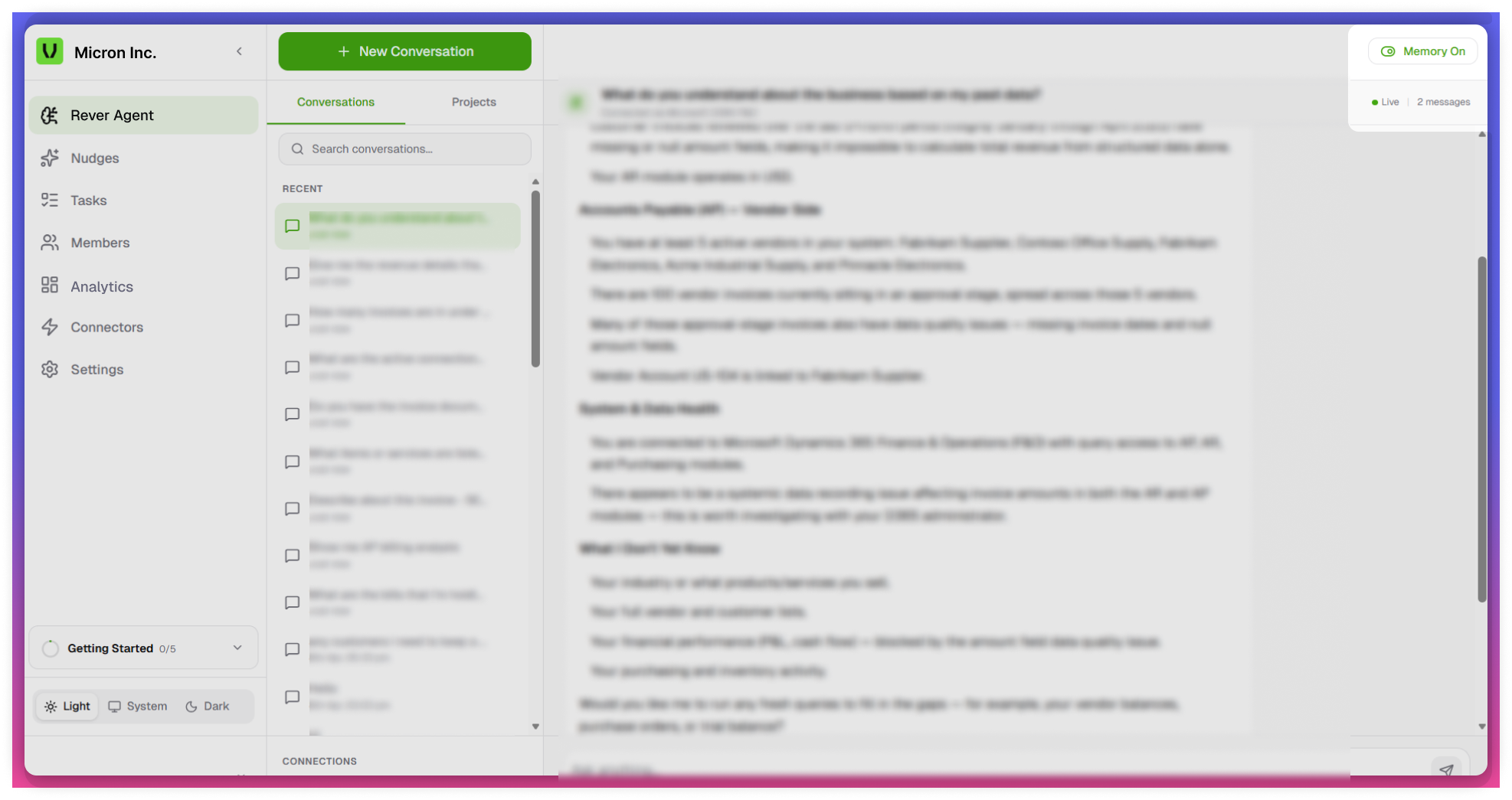
5. Memory Indicator
- Shows Memory Status (ON/OFF)
- When enabled:
- Retains conversation context
- Improves response continuity and accuracy
tip
Enable memory for better contextual responses
6. Status Indicator
- Displays system status (e.g., Live)
- Indicates that the AI service is active and ready to respond
Integration with Other Modules
- Tasks
- Create tasks directly from responses
- Enables quick action on insights
- Connectors
- Data availability depends on active system connections
note
Responses are based on connected MCPs and available data