Connectors
The Connectors module enables administrators to configure, manage, and monitor integrations (MCPs) with Finance and ERP systems. It provides visibility into connection status, performance, and usage metrics, ensuring seamless data flow across integrated platforms.
Only Admin users can add or manage connectors
Accessing Connectors
- Navigate to Connectors from the left navigation panel.
- The Connectors page will display integration details and metrics.
Adding a New Connector
Steps to Create a Connector
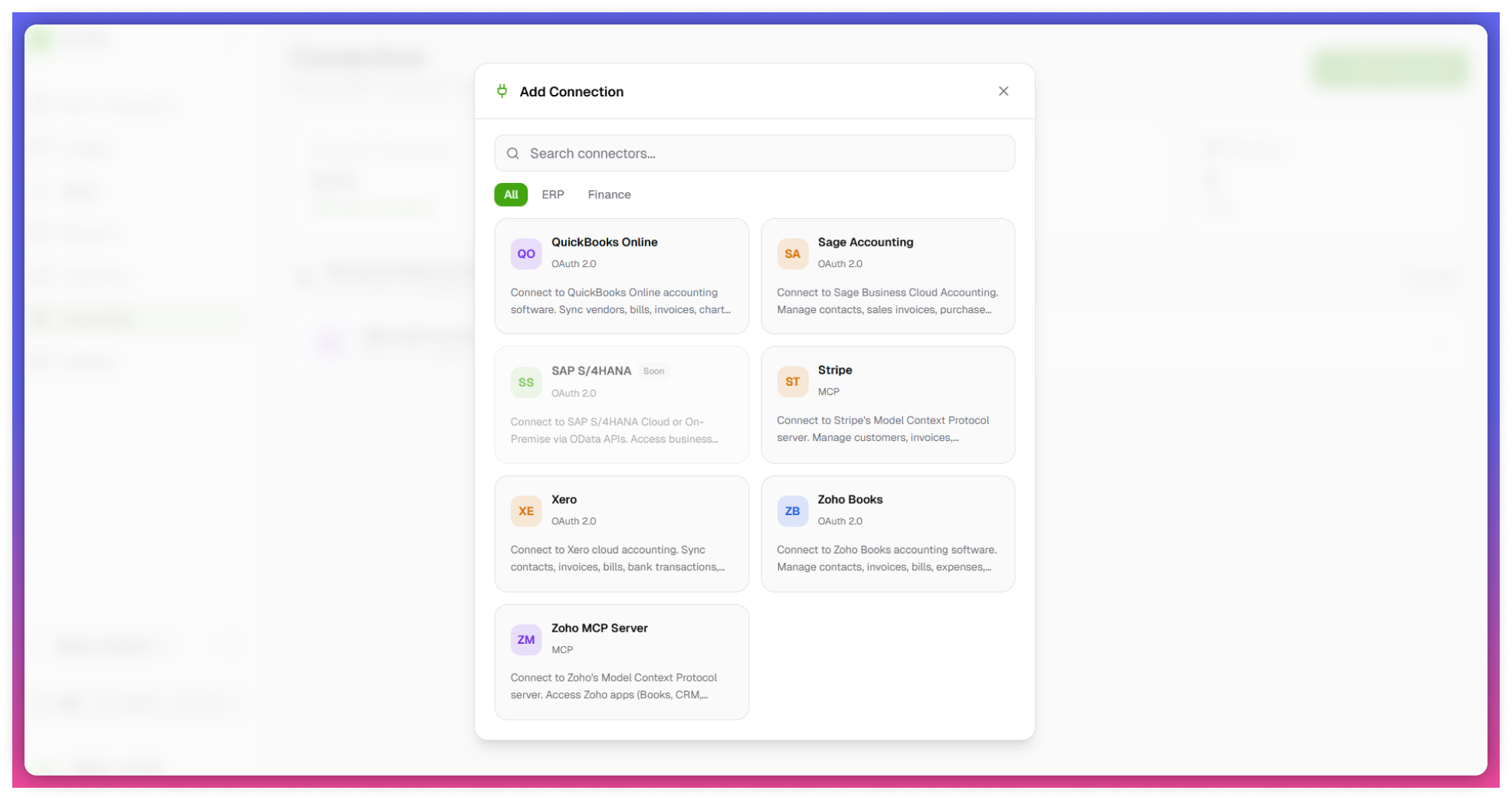
- Click on the Add Connection button
- View the list of available MCPs (Finance and ERP systems)
- Select a connector (e.g., D365)
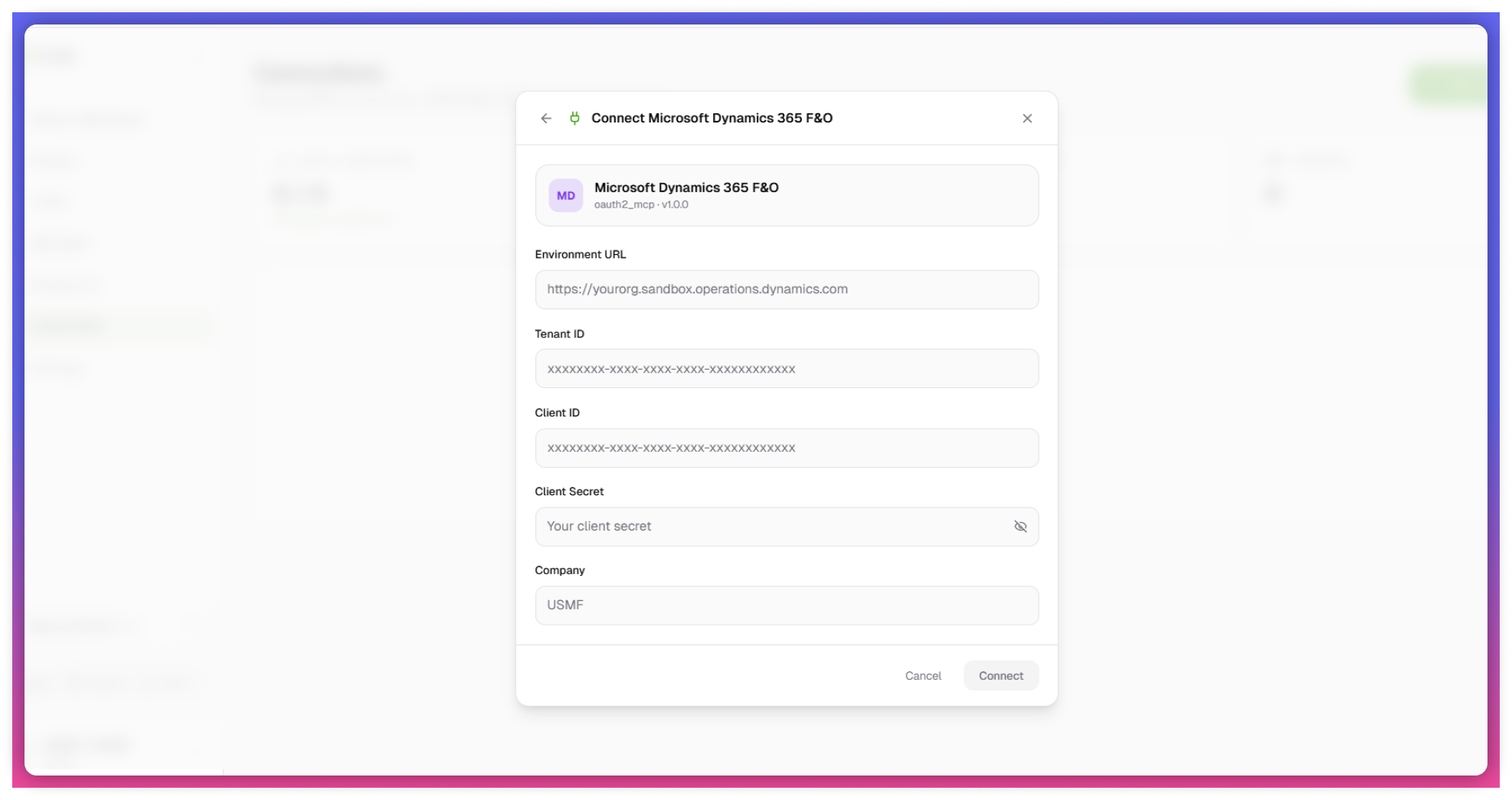
- Enter the required details:
- Environment URL
- Tenant ID
- Client ID
- Client Secret
- Company Name
- Click on Connect
Behavior:
- Upon successful configuration:
- The connector is activated
- Integration becomes available for queries and data retrieval
Required fields may vary depending on the selected integration. For step-by-step credential setup guides, see QuickBooks, Stripe, Zoho Books, and HubSpot.
Stripe Connector
- Click on the Add Connection button
- View the list of available MCPs (Finance and ERP systems)c
- Select a connector (e.g., Stripe), click on connect.
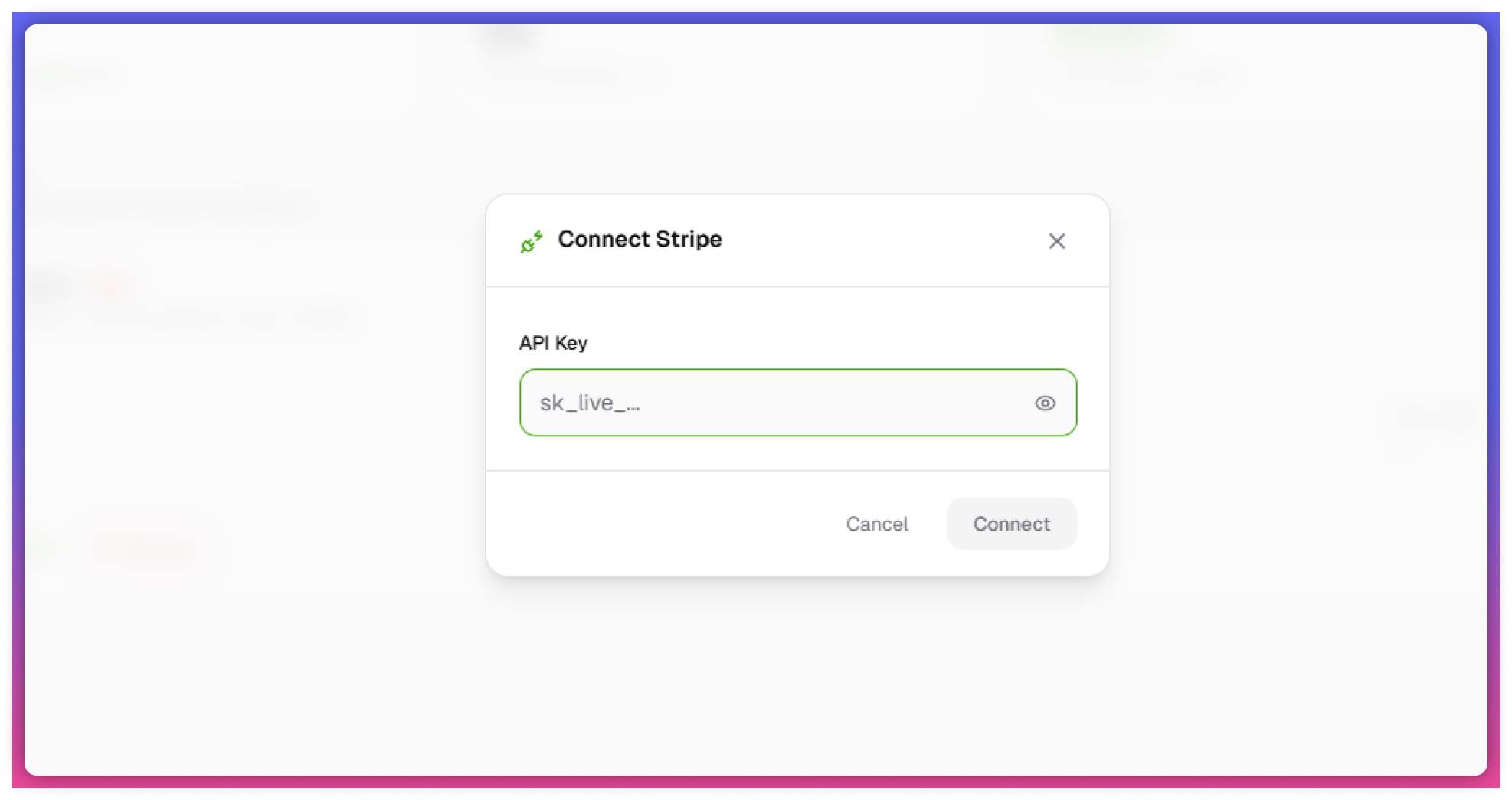
- After establishing the connection, select the Stripe connector to access the API key field.
- Requires a valid API Key
The API Key must be active and correctly configured. Not sure where to find it? Check the Stripe credentials guide for step-by-step instructions.
Behavior:
- Once connected:
- Enables querying and interaction with Stripe data
- Allows users to retrieve financial and transaction insights
Ensure the API key has the required permissions to access relevant Stripe data.
Connector configuration depends on integration-specific requirements
Connector Dashboard Overview
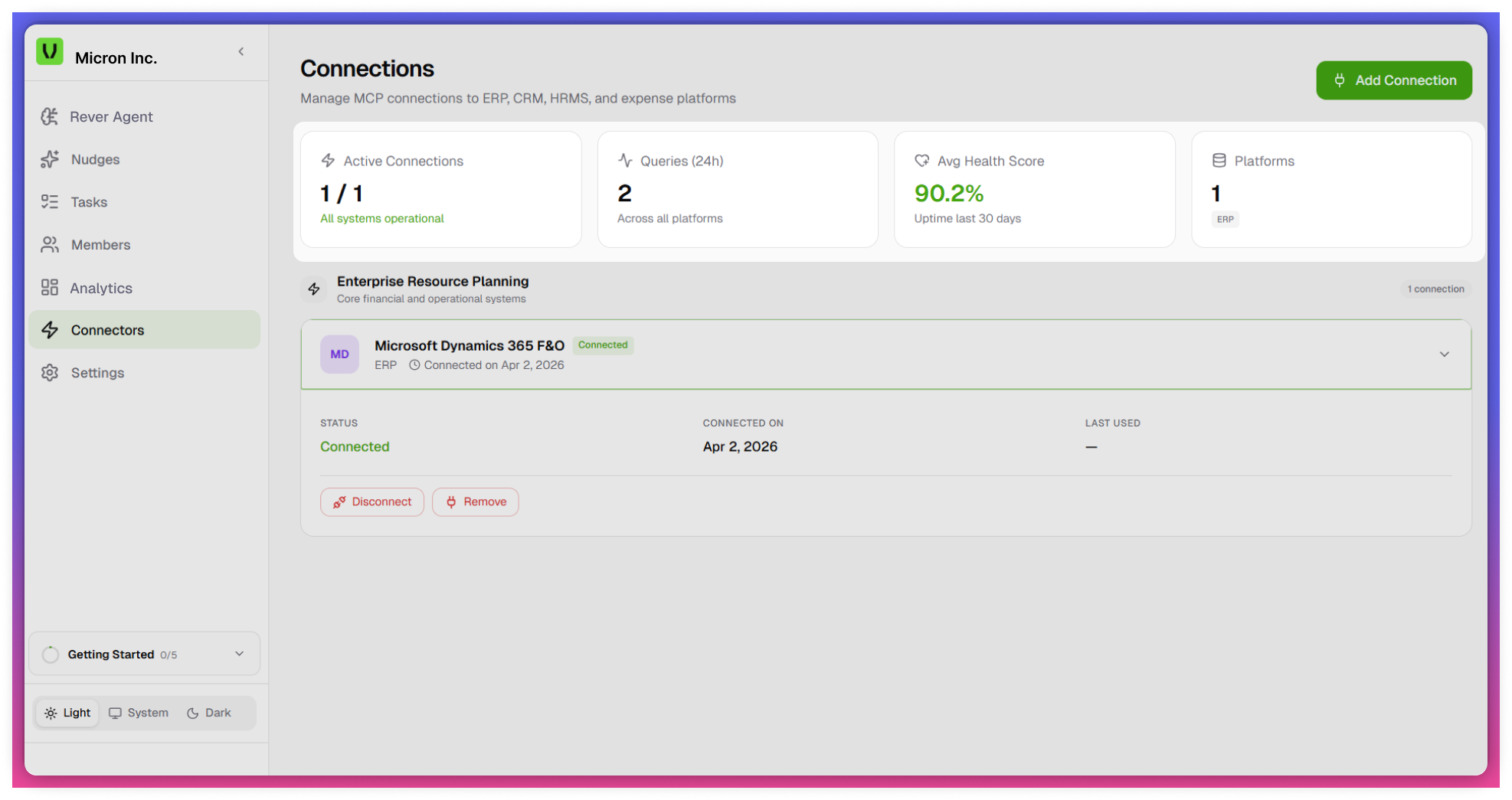
The Connectors page provides a summary of integration performance:
- Total Connectors Connected - Displays the number of active integrations
- Total Queries Raised - Shows the number of queries processed via connectors
- Average Health Score - Indicates overall performance and reliability of connections
- Total Platforms Connected - Displays the number of integrated platforms
Connector Details & Status
Each connector provides detailed information, including:
- Connection Status - Connected /Disconnected
- Connected Date - When the connector was established
- Last Used Date - Most recent activity on the connector
Key Functionalities
- Configure new integrations
- Monitor connection health and performance
- Track usage through query metrics
- Manage multiple platform integrations from a single interface