Tasks
The Task Settings Page enables administrators to control task behavior through Escalation Rules and Workflow Rules. These configurations help ensure timely task completion, enforce accountability, and maintain process discipline across the system.
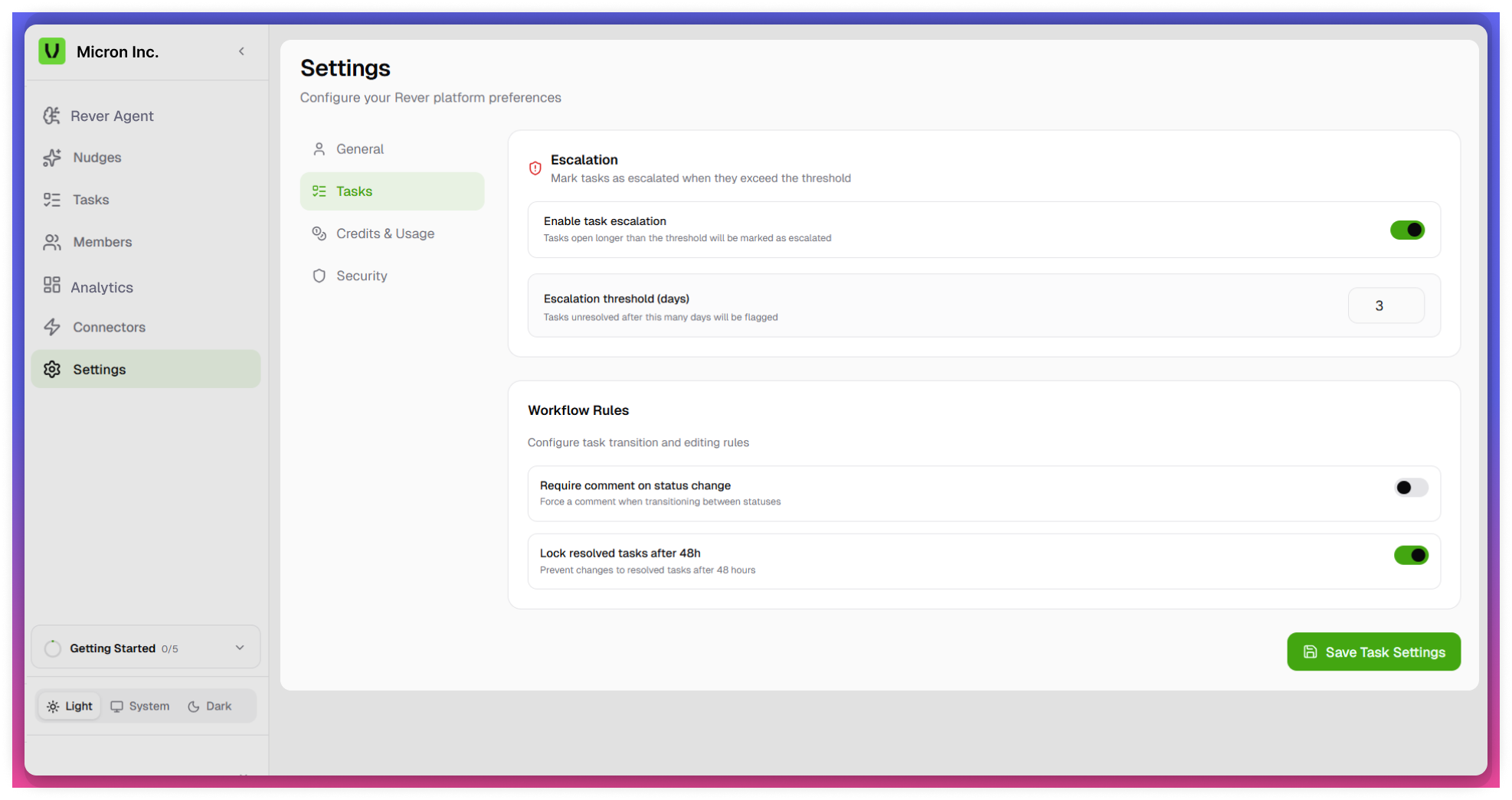
Accessing Task Settings
- Navigate to the Settings module from the left navigation panel.
- Select Task.
- The Task Settings page will display two main sections:
- Escalation
- Workflow Rules
Escalation Settings
The Escalation feature ensures that tasks are not left unattended by automatically escalating them if they are not completed within a defined timeframe.
Configuration Options
- Enable/Disable Escalation
- Toggle to enable or disable the escalation feature.
- When disabled, no escalation will occur regardless of task delays.
- Escalation Days
- Define the number of days after which a task should be escalated.
- Once the specified number of days is exceeded:
- The task is automatically escalated to the next level (e.g., Manager/Admin).
- Escalation helps drive faster resolution and accountability.
tip
Enable Escalation to avoid task delays and improve accountability.
Example
- Escalation set to 2 days:
- If a task remains incomplete for 2 days, it will be escalated automatically.
Workflow Rules
The Workflow Rules section enforces structured task updates and ensures proper documentation and control over task closure.
Mandatory Comments on Status Change
- Enable/Disable Mandatory Comments
- When enabled:
- Users must provide comments whenever they change the task status.
- When disabled:
- Comments are optional during status updates.
- When enabled:
tip
Use Mandatory Comments to maintain a clear audit trail.
Task Lock After Resolution
- Enable/Disable Task Lock
- When enabled:
- Tasks will be automatically locked after 48 hours once marked as Resolved/Completed.
- When disabled:
- Tasks remain editable even after completion.
- When enabled:
- Behavior
- After 48 hours:
- No further edits or updates can be made to the task.
- Task becomes read-only.
- After 48 hours:
tip
Activate Task Lock to protect completed task records from modification.
note
- These settings apply globally to all tasks within the system.
- Only authorized users (e.g., Admins) can modify these configurations.
- It is recommended to align escalation timelines with business SLAs.