Security
The Security tab enables users to manage and update their account password, ensuring account safety and compliance with security standards. This section is critical for maintaining the confidentiality and integrity of user access.
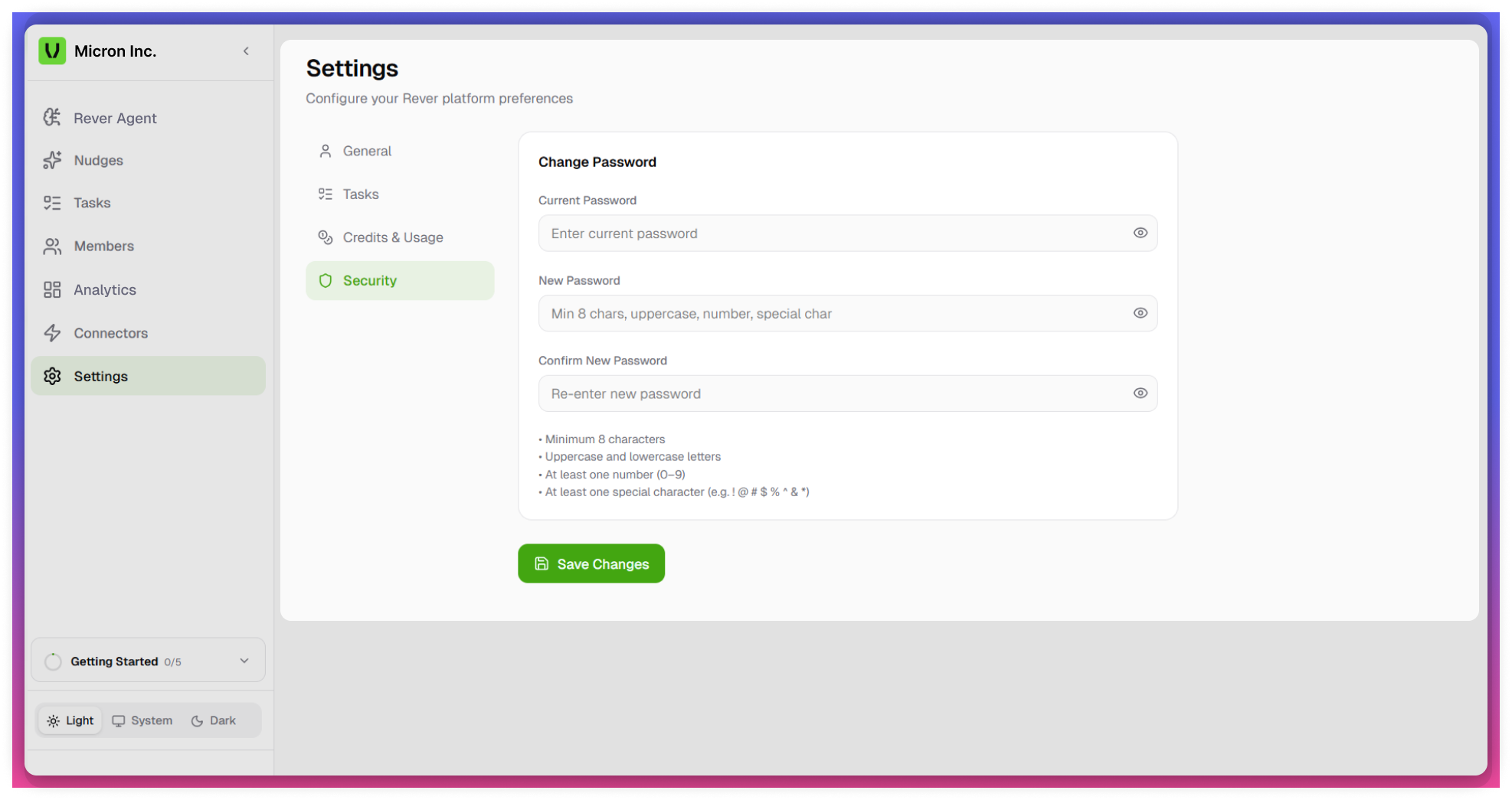
Accessing Security Settings
- Navigate to the Settings module from the left navigation panel.
- Select the Security tab.
- The Change Password section will be displayed.
Change Password
Allows users to securely update their account password.
Required Fields
Users must provide the following details to update their password:
- Current Password - Enter your existing password for verification.
- New Password - Enter the new password you want to set.
- Confirm New Password - Re-enter the new password to confirm accuracy.
Steps to Change Password
- Enter the Current Password.
- Enter a New Password that meets the required criteria.
- Re-enter the same password in Confirm New Password.
- Click on Save/Update Password.
- Password will be updated upon successful validation.
Password Requirements
To ensure strong security, the new password must meet the following criteria:
- Minimum 8 characters
- Must include both uppercase and lowercase letters
- Must contain at least one numeric digit (0–9)
- Must include at least one special character (e.g., ! @ # $ % ^ & *)
Validation Rules
- New Password and Confirm Password must match
- New Password cannot be the same as the Current Password
- System will display an error message if requirements are not met
tip
- Use a unique password that is not used on other platforms
- Update your password periodically for enhanced security